
Creating your first board
Pick a template, design how it looks on screen — background, blocks, fonts, and colors — and put it on a TV. A board can be pure signage or a live counter; this guide covers both.
Step 1: Pick a template
Open Boards in the web app and click + New board. Every board starts from a template — live counters, revenue boards, goal thermometers, café menus, specials, announcements, and welcome boards. Pick the one closest to what you want; you can restyle everything after.
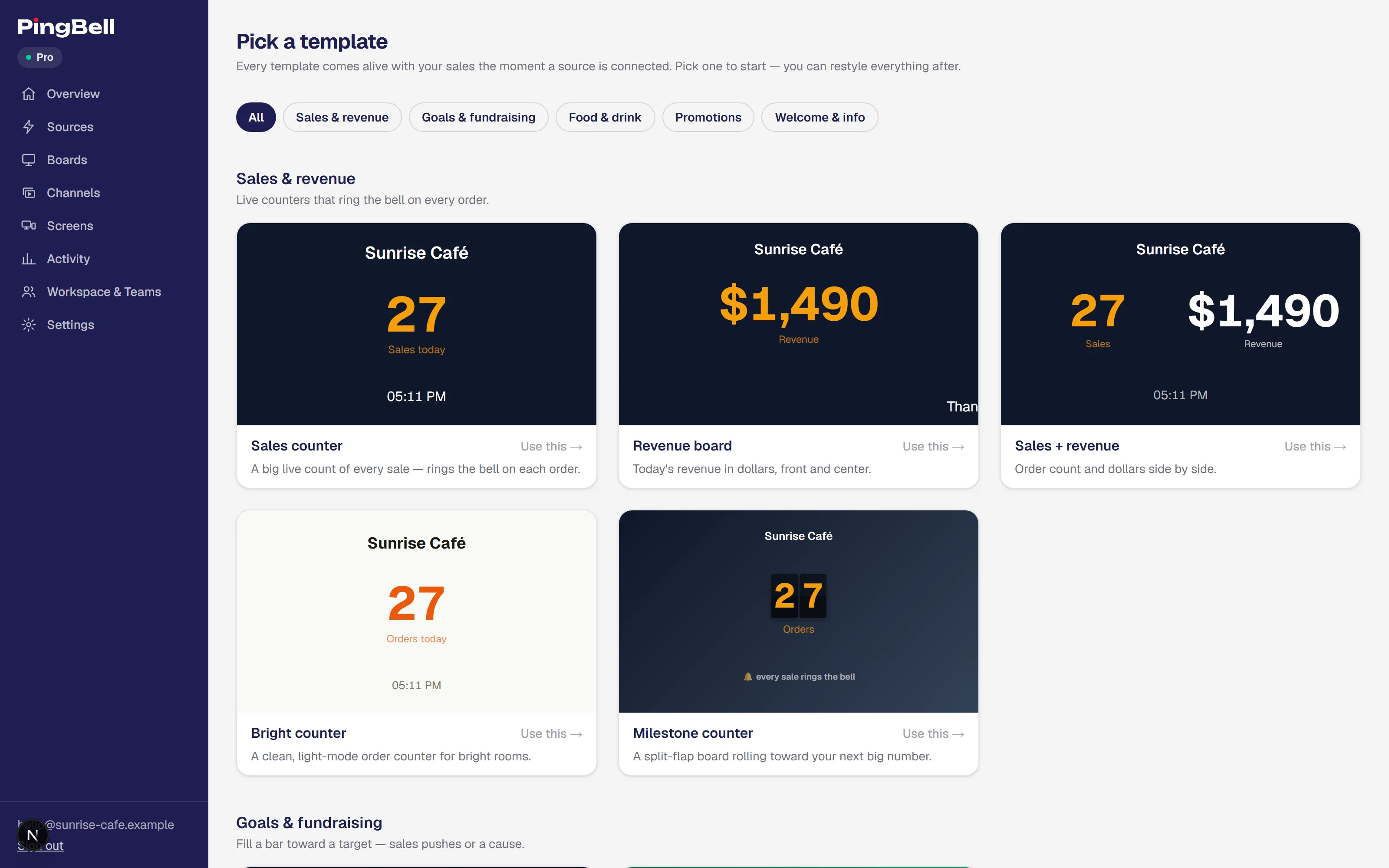
Click Use this and you land straight in the editor.
Step 2: Design the board
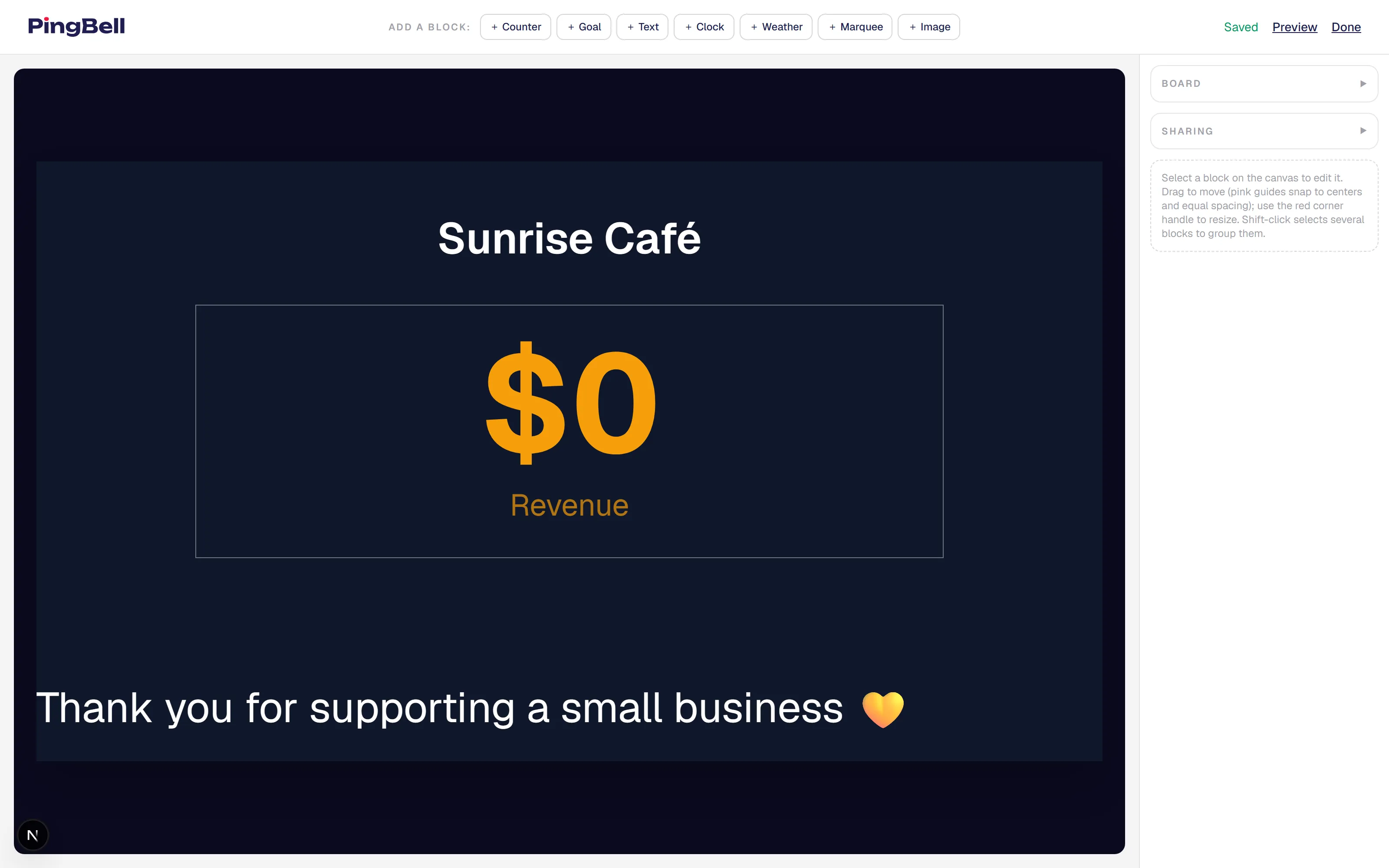
The board editor is point-and-click: drag blocks to move them (pink guides snap to centers and equal spacing), use the corner handle to resize, and edit any block’s settings in the right-hand panel.
Choose a background
In the Board section of the right panel, pick a background color, a ready-made gradient, or upload any image — a menu, brand artwork, a product photo, a seasonal promo. A background on its own is already a finished signage slide — no data source required.
Add blocks
Use the Add a block toolbar to layer blocks on top:
- Counter — the live number, bound to a source (or demo events).
- Goal — a progress bar that fills toward a target.
- Text — headlines, prices, announcements.
- Clock — the current time and date.
- Weather — current conditions for a city you set.
- Marquee — a line of auto-scrolling text for specials or hours.
- Image — logos and artwork layered anywhere on the board.
On Core, boards are fill-in: you edit the template’s content but the layout stays put. The full designer — add, move, resize, and delete any block — is on Plus and Pro.
Wire up the counter
Select a counter block and pick its Source — any source you’ve connected, or Demo events to see it move before real data arrives. Choose the metric (sales count or revenue), the time window, and the celebration: confetti, fireworks, hearts, or your own emoji, plus a sound from the built-in library.
See it live
Changes save automatically, and every edit appears on every paired screen the moment you make it. There’s nothing to publish and nothing to refresh on the TV.
Step 3: Put it on a screen
Click Cast on the board card to open it full-screen in a browser tab, or pair a TV and cast it there. If the board should update itself with real events, connect a source first: